Support center NAO6
Before starting:
Material you will need:
Computer
Electrical Socket
Ethernet socket connected to the internet
Access to a WIFI network
You will also need:
- enough space around you to unbox the robot
- Some space on the floor, to letthe robot stand and move
- Around 60 minutes
Get NAO6 out of the box
What’s in the box?
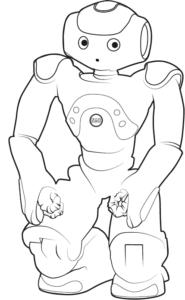
NAO
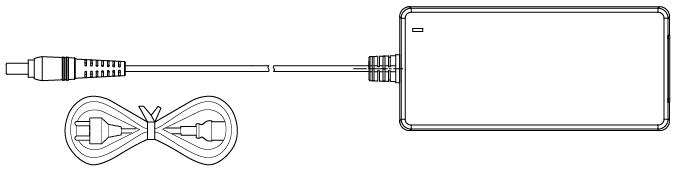
Battery charger
Ethernet cable
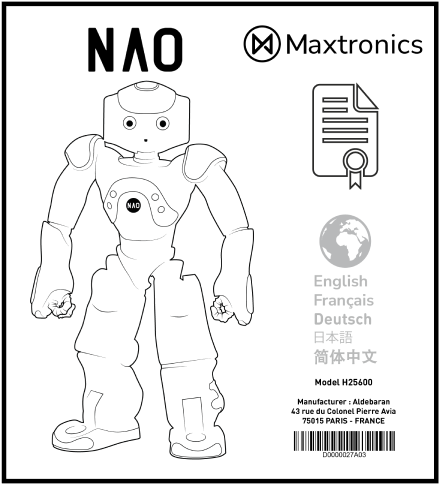
Certification and technical information
Unpack NAO
Do not place NAO at the edge of a table. If NAO falls from this height, it will get damaged and you may void your warranty.
NAO’s fingers are fragile, do not pull on them or they might come off.
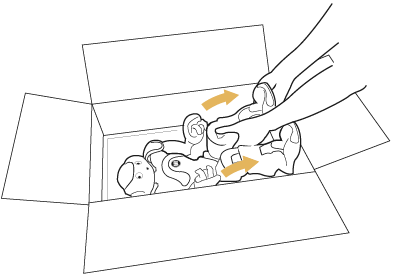
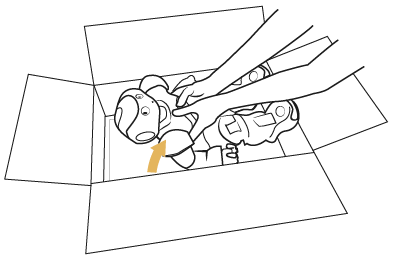
1. Get NAO out of the box as shown.
Be carefull when picking NAO. Do not place your hands and fingers near the joints or between the limbs, you could get pinched.
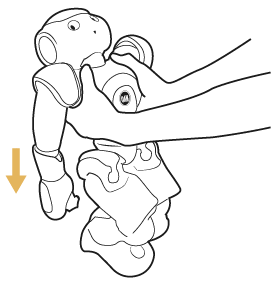
Holding NAO by the waist is the best way to handle the robot.
2. Gently set NAO on the floor, in a Safe Posture.
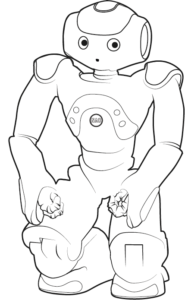
Move NAO’s legs and arms and put in a Safe Posture : crouch or sitting.
Charge NAO
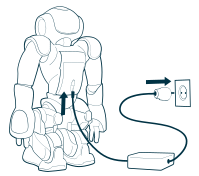
Plug the charger to the mains, and plug the charger cable into NAO‘s back.
The small LED on the charger should light up.
Leave NAO charging and take your Computer.
Get "Robot Settings", the configuration tool
Download and install Robot settings
Robot settings desktop application is necessary to use NAO
Robot Settings is the essential desktop application that will allow you to perform the robot initial configuration and many other things.
- Launch the Robot Settings Setup Wizard.
- Click Next.
- Choose the directory where you want to install Robot Settings.
- Select “Bonjour”, a component needed to connect Robot Settings to the Robot.
- Click Next.
- Read and follow the instructions then click Next. Robot Settings is ready to be installed.
- Click Install and wait until the installation process is completed.
- Click Finish.
Connect your robot and computer
Power on NAO
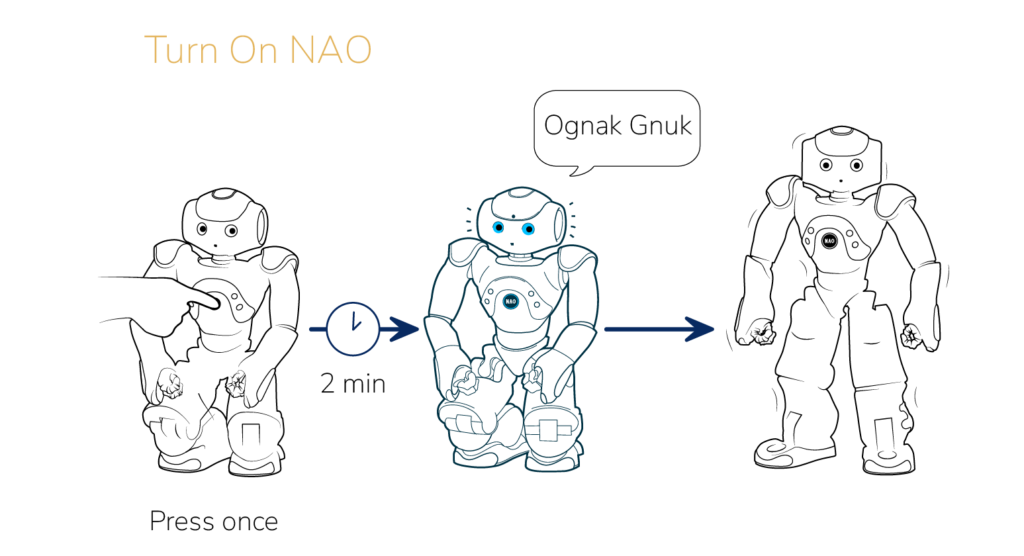
Press the Chest button once, and wait for the end of the boot process
The Chest button passes by multiple color states.
The boot process is completed when the robot says “OGNAK GNOUK”.
Connect NAO to your computer
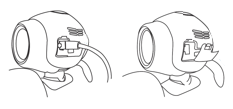
- Connect your Robot to your computer, using an Ethernet cable, to be plugged at the back of NAO’s head.
- On your computer, launch Robot Settings.
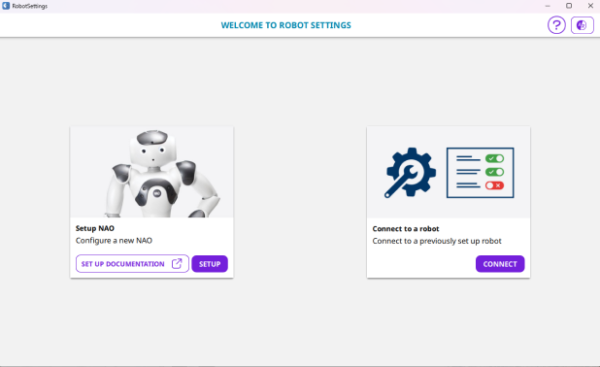
- Click the Setup button.
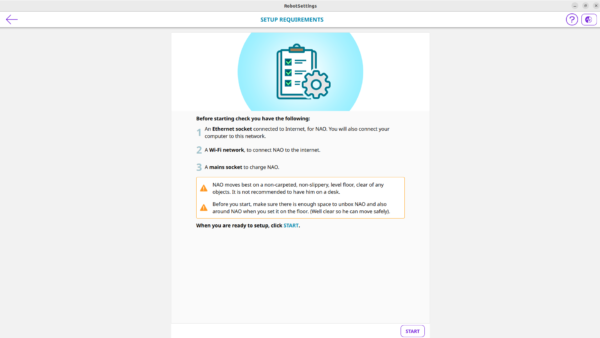
- Follow the recommendations displayed then click the Start button.
- The Getting started wizard starts automaticaly
- Check the pre-requiries. Click Start. Check if Nao is ready to be connected to your computer.
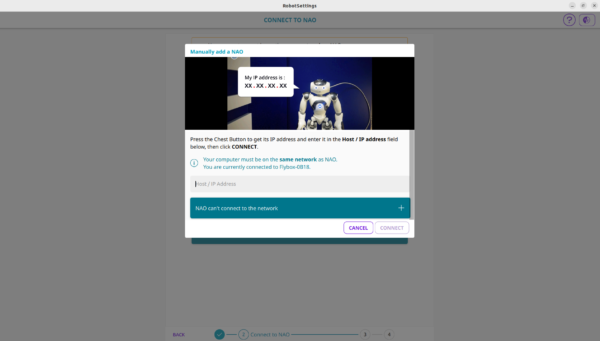
- Open, “ Manually add a NAO”. Avoid clicking “Open Robot list” in the top right corner as it only displays Robots that are already set up and connected to the network.
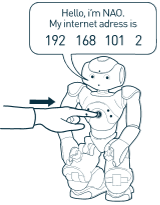
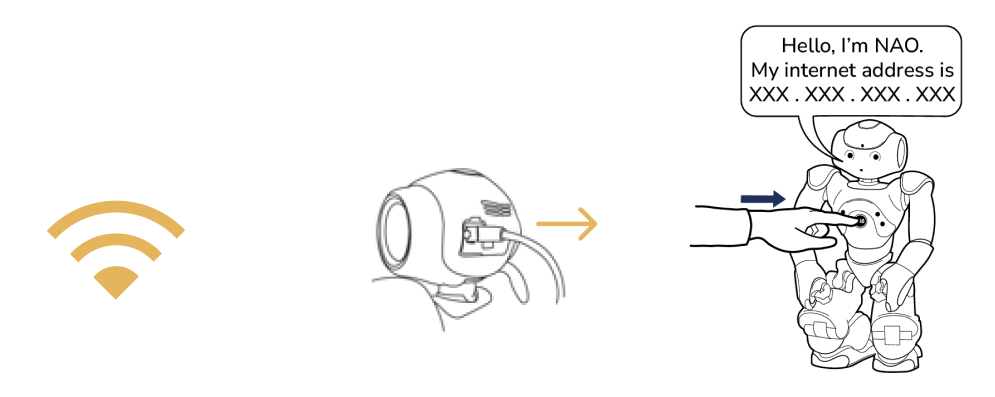
- Press the Robot’s Chest Button to hear its IP address.
- Type in the IP address of the Robot in “Host/IP/ Adress” field, make sure to type also the “points” and press “Enter” on your computer keyboard.
Configure NAO
- Agree the End-user software agreement
- Set up the Wi-Fi connection
- Log NAO to your ALDEBARAN account.
- Set the Time zone.
- Set a password to secure the remote access to NAO.
- Change the robot name.
- Accept or not to send reports for diagnostic & improvements.
Manage NAO’s content
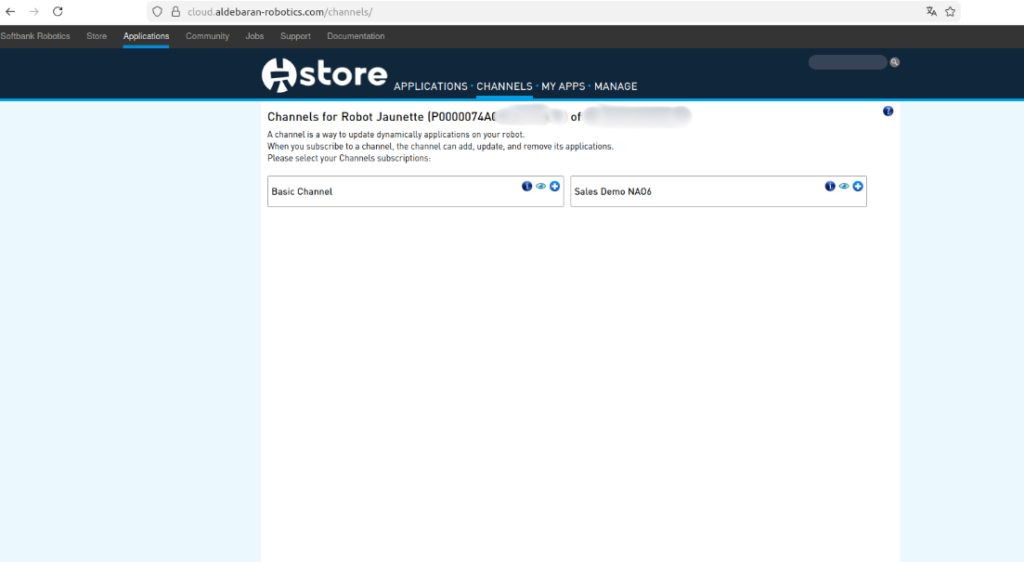
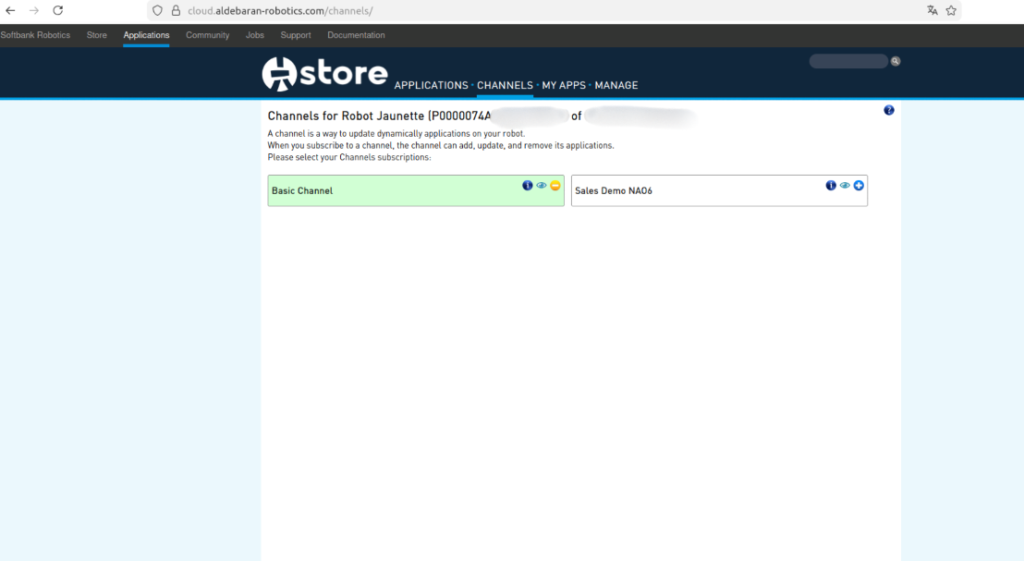
- Add the Basic Channel, by clicking on the blue “+” button. It allows you to speak with NAO. Without it, NAO won’t be able to talk.
- Add a second language
- Install or update the applications
- NAO Language selection
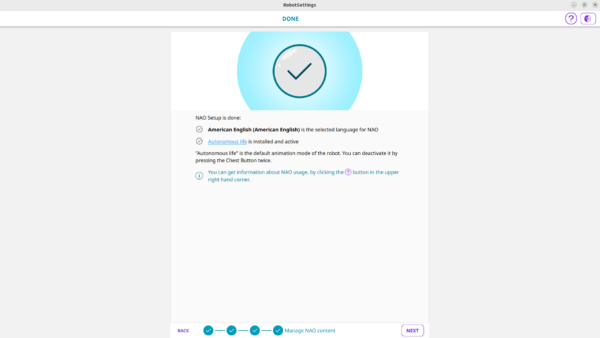
Configuration is completed!
Done screen summarize the settings of your robot.
Final connexion
If you had previously set up a WiFi connection.
You can now remove the Ethernet cable and put back the hatch behind the head of the robot.
As a consequence, Robot Settings will lost the connection and the robot will switch to the previously registered WiFi network.
Connect your computer on this WiFi network and ask again NAO his IP Address in order to reconnect Robot Settings to the robot.
If you haven’t set up a WiFi connection previously you need to return on robot to setup a WiFi connection in the NAO settings.
Re-start NAO6
Before testing NAO after a configuration, it’s always recommended to reboot NAO.
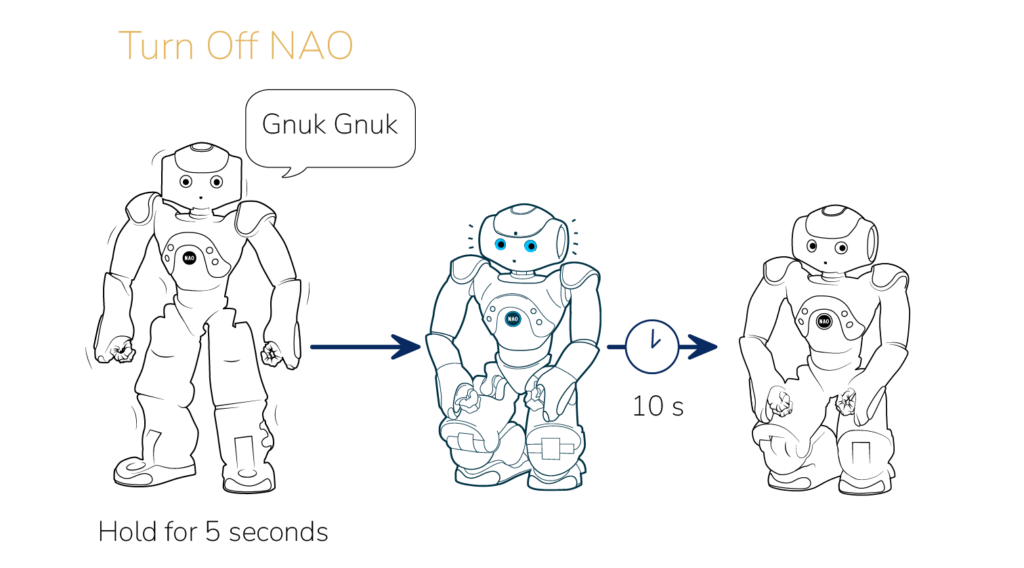
Re-start NAO6. Press the chest button 3 seconds. Than turn-on NAO6 by pressing the chest-button 1 second.
Discover NAO’s capacities
> Program NAO: Download our low-code software Choregraphe
> Program NAO: Download our Software Development Kit
> Customization: Change NAO’s settings in Robot Settings.
> Go to the NAO’s app store: Discover all NAO’s applications