
Support center NAO6
A new Software version is compatible for NAO6, since March 2026.
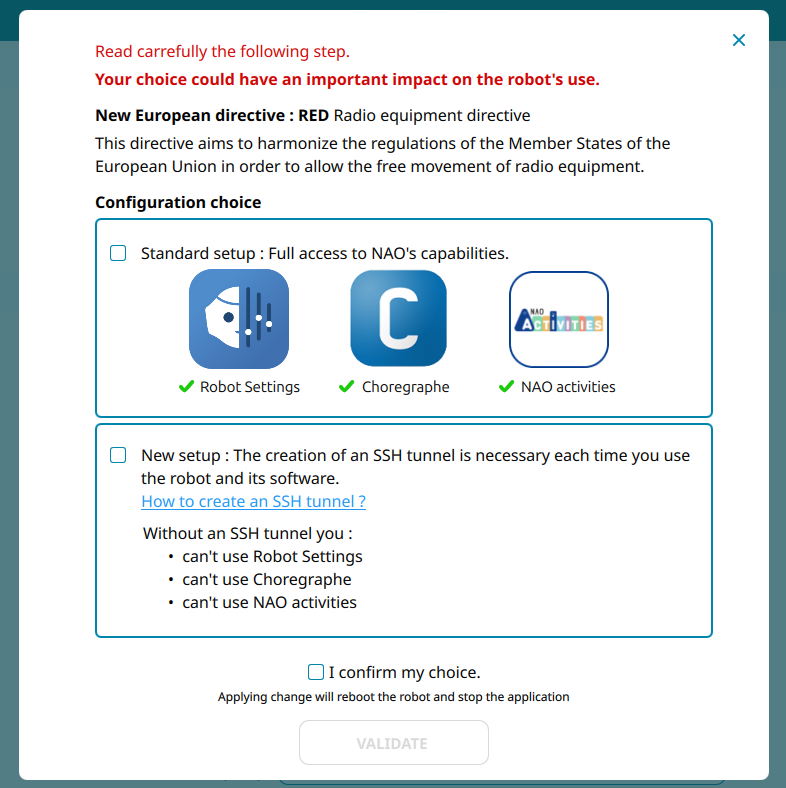
This new version is related to the with New European directive : RED Radio equipment directive
This directive aims to harmonize the regulations of the Member States of the European Union in order to allow the free movement of radio equipment.
How to proceed to the Software Update?
Please follow these steps to update NAO with the latest version:
- Make sure your NAO is turned on and connected to the network. (Press its Chest button once. If NAO says its name and Internet address, it means the connection is OK.)
- Install the new version of Robot Settings (V. 2.0.2 – pink icon) https://maxtronics.com/en/robot-settings/
- Open Robot Settings
- Connect to your robot with the IP address (click on NAO torso button to get its IP address with this format : XX.XX.XX.XX)
- Check the Software Update available
- Start the Software update
- Select the Safety and security new parameter in the setup screen (see 4/ RED Radio equipment directive information below)
- Open the new Maxtronics Application Store: https://cloud.nao6.maxtronics.com/
- Click on “Sign In” to recover your Aldebaran account*
- Click on “Forgot password”. You will received an email to set your password again.
- You can now add new applications or languages in your robot from the Maxtronics Application Store.
*If you don’t have an account yet or can not recover former email account:
- Click on “Register” and create a new account.
- Go in Parameters page in Robot Settings
- Assign your new account to the robot
- You can now add new applications or languages in your robot from the Maxtronics Application Store
What's new?
This new version is changing the way to daily manage your NAO and requires:
- the installation of a new version of Robot Settings
- to download or upload applications from the new Maxtronics application Store
- the change of the port number to connect NAO to Choregraphe from 9559 to 9561
- to opt for open or closed platform during the setup (see Radio equipment directive below)
Important notes for existing NAO6 customers:
Aldebaran Cloud Services will end on October 1st 2026. Update your NAO6 to use Maxtronics Cloud Services.
As part of the transition of NAO cloud services, Maxtronics is taking over the NAO cloud infrastructure with new services dedicated to NAO6. Please note that Aldebaran cloud services will be permanently discontinued on October 1st, 2026.
To continue using cloud services, all NAO6 robots must be updated. Any robot that has not been updated before this date will no longer be able to access cloud services, including the Application Store, Software updates and Remote ASR.
Application Store, Software updates and Remote ASR will only remain available through Maxtronics store website after October 1st 2026.
After this deadline, the software update will be possible through manual installation via Choregraphe and our technical assistance.
If not updated, NAO6 will continue to work as usual, if you are not using any cloud services, or need to download updates or applications from the store website.
The new SW update is free and has no impact on the installed applications.
This is only valid for NAO6, NAO5 are not involved in this update.
If you have any issue, please fill the support request form with your robot information https://maxtronics.com/en/maxtronics-support/
1/ ROBOT SETTINGS: New version to download
| NAO6 sold in 2025 or before | NAO6 sold from 2026 | |
|---|---|---|
|
Software version |
NAOqi 2.8.7.4 |
NAOqi 2.8.7.7 |
|
Robot Settings |
||
2/ New Maxtronics Applications Store for NAO
This new version is changing the way to daily manage your NAO and requires to download or upload applications from the new Maxtronics application store https://cloud.nao6.maxtronics.com/
To recover your account from the Aldebaran store, click on “forgot password?”
If you don’t have an account yet or can not recover former email account, click on “Register” and create a new account. Then Go in Robot Settings / Parameters page to assign your account to your NAO.
You can now download the 21 languages compatible with NAO6 free of charge.
Feel free to discover all NAO6 demonstration applications by activating the “NAO6 Discovery Apps” channel on your NAO.
After opting for this channel, you need to start the application update from Robot Settings to apply on your NAO.
3/ CHOREGRAPHE: New Port for Connection to NAO robot
Choregraphe and the SDK are compatible with the new NAO Software version, but the way to connect to NAO has changed via a new port.
To connect your NAO with the Choregraphe Software, you should change the port number.
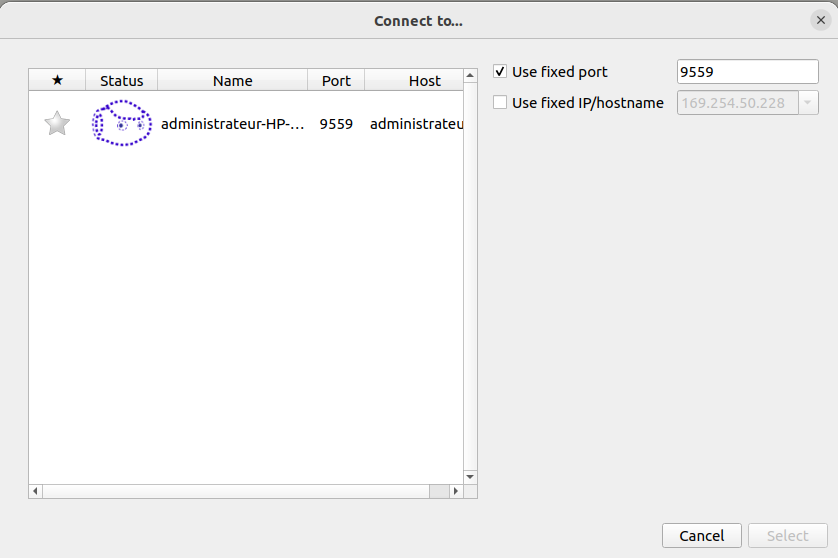
The previous version of NAOqi was using the port 9559 to connect to NAO.
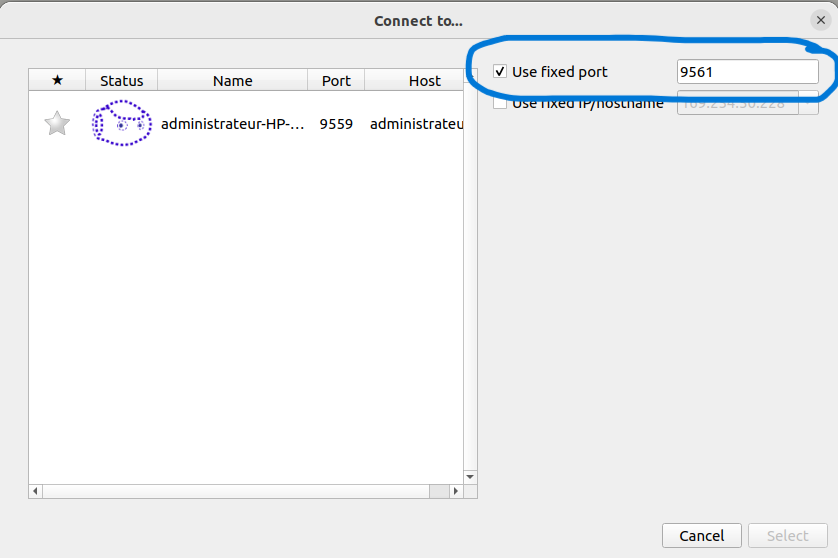
The latest version of NAOqi is now using the port 9561 to connect to NAO.
Please edit this port number before trying to connect to NAO.
4/ RED Radio equipment directive
This new version proposes 2 types of usages.
The Radio equipment directive directive aims to harmonize the regulations of the Member States of the European Union in order to allow the free movement of radio equipment.
During the setup of a robot bought from 2026 (using NAOqi version 2.8.7.6 or latest), you will be able to chose if:
– you want your robot to be setup as an open platform
– or if you would like to secure all the communication with NAO. For that second option, a SSH tunnel will be required every time you want to connect to NAO through Robot Settings, Choregraphe or NAO Activities.