

Support center NAO6
NAO robot user guide
Manipulation & Safe postures
Manipulate NAO
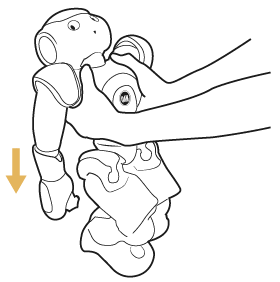
Carry NAO in rest mode. Hold NAO by the waist.
NAO’s Safe postures
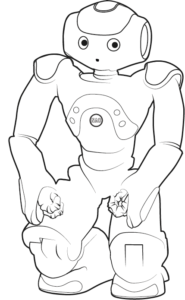
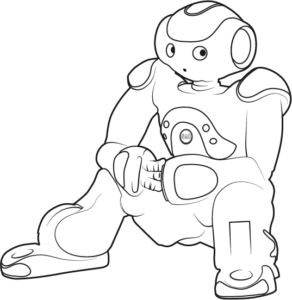
In Safe Posture, NAO is stable, its motors and joints are safe.
There are two Safe Postures for NAO : crouch or sitting :
NAO will go in Safe Posture (crouch) when:
Turned OFF,
In Rest mode.
You should always have NAO in Safe Posture when:
You turn ON NAO,
You want NAO to be still,
You don’t use NAO.
NAO has fallen
If, for any reason, NAO has fallen on the floor, don’t worry!
The current activity is automatically stopped and NAO tries to stand back up on his own.
NAO tries to recover the last stable posture he was in (sitting or standing) and will not stop trying until this posture is recovered.
When a try fails, NAO removes its Stiffness so a human can put NAO in a more favourable position, (sit or crouch) so NAO’s next attempt will be successful.
On / Off
Turning NAO ON and OFF
Make sure NAO is in a safe position, or he may fall.
You could also place a hand on its back to keep it in position.
To turn ON NAO, press the Chest Button once (~1 second). and wait for the end of the boot process: The Chest button passes by multiple color states.The boot process is completed when the robot says “OGNAK GNOUK”.
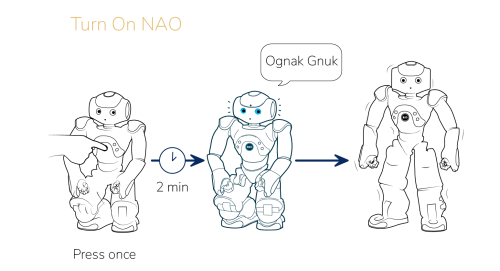
To Turn NAO OFF, press the Chest Button until NAO says “Gnuk Gnuk (~3 seconds).
The shutdown process is completed when all the LEDs are off.
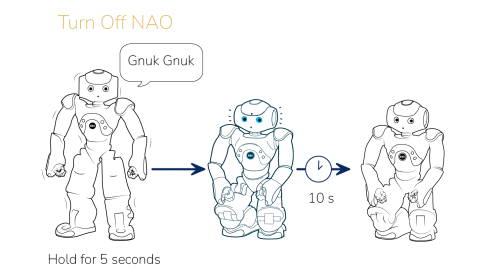
Rest mode
Put NAO in rest mode when you need to transport it or change position.
Press the Chest Button twice to turn off NAO’s motors.
Press the Chest Button twice to re-ignite its motors.
Special Start-up
This process takes long (~15 minutes). You should not need to do this on a regular basis. This will reinstall all the robot firmware. You can use this to try solve some errors.
Make sure you plug your Battery Charger to NAO, so the process is not interrupted. When NAO is OFF, you can press and hold the Chest Button until the Chest Button LEDs become blue (~5 seconds) to perform a special start-up.
The process is complete when NAO wakes up and says “Ognak Gnuk”.
Force Turn OFF
Use this only if the normal turn OFF does not work. The Forced Turn OFF is not recommended in normal use.
Hold NAO carefully because the motors will turn OFF and NAO might fall. Do not place your fingers near the joints, you could get pinched.
Press and hold the Chest Button until NAO turns OFF (~8 seconds).
The robot says “ GNUK GNUK ”,
The tactile-head and ear LEDs fade quickly.
Battery
Charging the battery
Set NAO in a crouching position.
Plug the charger to the mains, and plug the charger cable into NAO‘s back.
Check the charger’s LED to have an indication about charge status.
When the battery is charged enough, disconnect the charger cable from NAO‘s back, then disconnect the charger from the mains.
How do I know it is time to charge the battery again
Notifications warn you that the battery needs to be recharged.
Battery notifications
NAO tells you the battery state.
| NAO's sentence | Meaning | LEDs feedback |
|---|---|---|
|
“My battery is now fully charged.” |
Battery 100% |
|
|
“My battery will soon need charging.” |
Battery 30% |
|
|
“My battery needs urgent charging.” |
Battery 15% |
|
|
“My battery is totally empty. I’m shutting down.” |
Battery 0%
Shut down |
|
Talking with NAO
How to chat with NAO ?
Prerequisite: Autonomous Life : Activated – Basic Channel : Installed
NAO should be placed in a quiet zone for best voice recognition. Make sure there is no bright light or direct sunlight in NAO’s face to avoid it being distracted.
Get close enough, and make sure NAO has seen you. NAO will detect your presence if you approach within five feet (1.5 meter). NAO tries, as much as possible, to establish and keep eye contact with people around.
To do so, NAO :
Looks in the direction of any detected stimulus – sound, movement, touch.
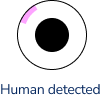
Checks if this stimulus may correspond to a human. If a human is detected, NAO’s eyes turn to pink eyelashes for a moment, and he tries to keep eye contact with him/her, If not, NAO goes back to his previous occupation.
Check if NAO is listening, his eyes should be rotating blue.
How I know NAO is listening ?
Eyes feedback
To make sure NAO is listening, check his eye LEDs
When the eyes are rotating blue Nao is listening.
When the eyes are white with pink eyelashes Nao seeing a human.
When the eyes are white or pale blue, NAO is not listening, the dialog has not started.


Sound feedback
Additionally, slight “bloup” sounds can be heard when NAO starts and stops listening:
- When starting listening, the sound is ascending,
- When stopping listening the sound is descending.
What can I say ?
Say the sentence, clearly, without hesitation.
You can ask NAO whatever you want. Question him on his abilities, personnality, what he thinks about robot, his relationship, his technical charateristics. Here some examples :
Meeting NAO
Hello / How are you? / Goodbye
Ask for informations
How can I change your volume? / What is your battery level? / What is your IP address? / Are you connected to the wifi? / Can you repeat?
Modify settings
Speak English / Speak softer / Can you restart? / Go to sleep
Make NAO moves
Can you stand up? / Can you shake your head? / Can you raise your arms? / Can you move your hands?
Capacities
Can you sing? / What can we talk about?
Problems
- NAO says nothing : If NAO has not understood what you said, he starts listening again. Repeat louder or try another sentence.
- NAO starts talking before I finished : Pauses are interpreted as the end of the sentence. Speak loud and clear, without hesitation.
- NAO doesn’t listen. Get close enough, in front of him, try to catch his gaze.
Interaction with NAO
Wake up and put Nao to sleep
Awaking NAO :
Touch the head tactile sensor. After touching it, NAO is awake.
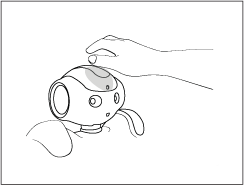
Putting NAO to sleep :
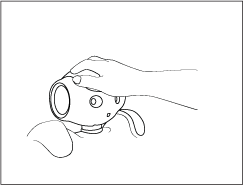
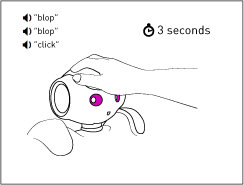
Lay your hand on NAO ‘s head: Palm on the top camera, fingers on the head tactile sensor ,hold your hand there for 3 seconds to put NAO to sleep.
Feedback: 3 slight sounds while holding your hand: “blop”, “blop”, “click”,both eyes and status LEDs then become purple for a short moment. You may remove your hand. After 3 seconds, NAO goes to sleep.
Using Chest button
When NAO is On
| Action on chest button | NAO's sentence |
|---|---|
|
Press one |
Say its name and IP address |
|
Press again
(while robot is talking) |
Skips the message |
|
Press twice |
Set the autonomous life OFF / ON |
|
Press and hold for 3 seconds |
Shut down |
|
Press and hold for 8 seconds |
Emergency switch off |
|
Chest Button flashes. Press it. |
Reading a notification |
When Nao is Off
| Action on chest button | NAO's sentence |
|---|---|
|
Press one |
Turn ON |
|
Press and hold for 4 seconds |
Update the electronic’s firmware |
NAO goes not react to new stimulus:
When processing a stimulus (i.e. checking if it corresponds to a human). NAO does not react to other stimuli until he has finished to process the first one.
When engaged in an Activity or a dialog. When NAO is chatting with a human, he always keeps tracking the human until the human has left.
When NAO is in the middle of an Activity, all his actions are exclusively defined by the activity itself.
NAO's mode
Application mode and Nao activities mode
NAO can be set in 2 different modes:
- Application mode: NAO runs installed applications and use predefined behaviors and interactions.
- NAO Activities mode: NAO uses generative AI to interact with users.
Green foot LEDs , NAO Activities (IA) mode is activated
Foot LEDs off , programmed applications mode is activated.
Understanding Autonomous Life settings
Autonomous Life is the key element making NAO alive and responsive. To be fully effective, it requires to be combined with Basic Channel and Installed Activities By default, when you receive your NAO, only the Autonomous Life is installed and turned on.
The differences between the two modes:
| NAO's behavior | Which mode feedback | Discussion | Movments | |
|---|---|---|---|---|
|
Autonomous life On |
He is on his feet, He gets up. If he is sitting, NAO remains seated.
In all cases, NAO wags slightly, and seems to be waiting for something to happen. |
No light on the feet |
Not capable |
Capable |
|
Autonomous lif ON + Basic channel |
If he is on his feet, NAO gets up.
If he is sitting, NAO remains seated.
Then, NAO orientates its head towards human, and is able to react to basic stimuli, such as sounds, movements, or tactile contacts. If you stay away, NAO does not talk, but looks for people willing to talk and interact.If you come closer, NAO listens and tries to make a relevant answer. |
Green light on the feet. |
Capable |
? |
To enable or disable Autonomous Life
Press the Chest Button twice.
From off to on, NAO : Makes a happy grunt, turns the stiffness of its motors on, goes to a standing posture.
Note : this step is skipped when NAO is sitting, is lying, or has no feet.resumes its life.
From on to off, NAO : Sighs, stops its activities, goes to its resting posture.
Note : this step is skipped when NAO is sitting, is lying, or has no feet turns the stiffness of its motors off.
Optional Settings
To set the default status of Autonomous Life at start-up:
On the Advanced settings page click ”Alive by default” button.
Or, on the settings page of Robot Settings app click ”Enable Autonomous Life” at startup button.
Launching and exiting activities
Prerequisite for launching
Autonomous Life: ON | basic Channel: ON | At least one app/activity must be installed
To start an activity :
- Make sure NAO is listening..
- Say: “Start” + the Activity name, or one of the Trigger sentences, if any.
- NAO automatically starts the corresponding Activity
Prerequisite for exiting
Autonomous Life: ON | basic Channel: ON | At least one app/activity must be installed and running.
To stop an activity currently running:
Lay your hand on NAO‘s head : palm on the top camera, and fingers on the head tactile sensor. Hold your hand there for 1 second. Feedback : a slight sound: “blop”.Quickly remove your hand to stop the activity. Feedback: “click” sound, the eyes and status LEDs become green for a short moment.After you remove your hand, the current Activity is stopped.
Language
What is the language of my robot ?
By default, two languages are installed on NAO: English and your local language (or the second language you have asked for) among available languages.
English is his default or “native” language.
It means that if for any technical reason he is not able to find a word or a sentence in the current language, NAO will automatically switch to English.
Getting the list of installed languages
To get the list of installed language, you may:
Ask NAO.
Check the list available in Robot Settings.
Modifying the preferred language
You can define a language as his preferred or configured language.
To modify the configured language temporaly :
On a computer, launch Robot settings.
Display the Settings.
Choose a language in the Robot language list.
Temporarily switching to another language
NAO may temporarily switch to another language if an application requests it, oron your request.
In both cases this switch is not permanent. NAO will switch back to the language defined in his settings as soon as the application ends or you stop chatting with NAO.
If you want to add a 2nd language, follow the instruction on the configuring and settings page.
How to change the language ?
This action can be done with Robot Settings application or via the NAO webpage and ONLY IF a second language is installed.
- With Robot Settings application :
On Robot Settings main menu click the ” Settings” button. Click on the Robot language field and select the language you want NAO to speak. The change is automatic. Once you clicked, NAO will emit a notification sound to inform you the language is set.
- With the NAO’s webpage:
Open a browser (Google Chrome, Firefox, Edge, etc…) and type the IP address to connect to NAO’s webpage. Click on the Advanced Settings icon. In the Robot language list select the language you want to apply. The change is automatic. Once you clicked, NAO will emit a notification sound to inform you the language is set.
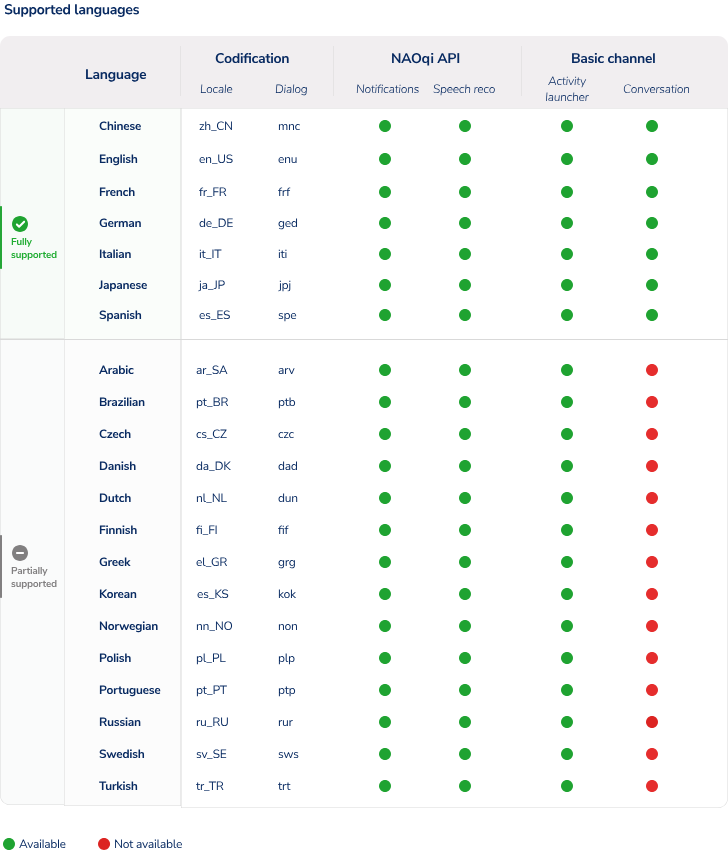
Supported languages:
Care of NAO and packaging
Choosing use location
NAO is designed for indoor use only. Keep NAO away from radiators or other heat sources. Do not operate NAO if non-condensed humidity is above 80%.Do not expose NAO to dust, sand, moisture, or excessive saline atmosphere (e.g. coastal environment).
Do not place NAO at the edge of a table: NAO does not see where the table ends. Ensure there are no slope or stairs around NAO.Ensure NAO is on a smooth and flat surface. Avoid carpets or rugs to maximize its stability on the floor.
How to preserve battery life cycle / is it out of order ?
This article will give you a few tips to:
perserve the NAO battery life cycle,
determine if the battery is defective or when it has reached the end of its life cycle and needs to be replace
How to preserve it ?
First and foremost, always use the charger and cables supplied in the NAO cardboard box :
Any other type of charger is not recommended.
It is highly recommended that you do a full recharge of the battery at least once every 3 month.
This type of battery includes a BMS board (Battery Management Sytem) that consumes power from the battery. So it will reach a low charge level even if you don’t use NAO.
A long period of no recharge can activate a “Deep Discharge state” safety on the BMS board.
This means the battery charge is considered to be too low.
This safety will lock the battery, making it impossible to recharge again.
Is the battery defective or has reached its life cycle limit ?
Some symptoms will mean that a battery needs to be replaced.
These symptoms are:
NAOqi Operating System crashes as soon as you try to activate NAO’s joints (usually, a hissing sound coming from the robot can be heard when it happens)
NAO automatically shuts down as soon as the charger cable is unplugged,
NAO cannot be used if the charger is not plugged to the battery,
When the charger is plugged to the battery, the LED is green even if the battery is empty.
Cleaning and storage
Cleaning
- Clean and disinfect your robot using alcohol (such as Isopropyl) based disinfectant wipes.
- Do not use water. Do not get NAO wet and never handle the robot with wet hands.
- Do not use ammonia-based products.
- Do not oil the joints.
Storage
You must use the orignal box and packaging to store NAO.
Follow the Reboxing procedure, as well as the following instructions regarding the Battery.
- Remove the Battery (in case of a long time storage)
- Do not place it in the box.
- You must fully charge the Battery once every 3 months to keep it usable (check the Battery Charger guide for more information).
- You can charge the Battery even when it is not inserted in NAO.
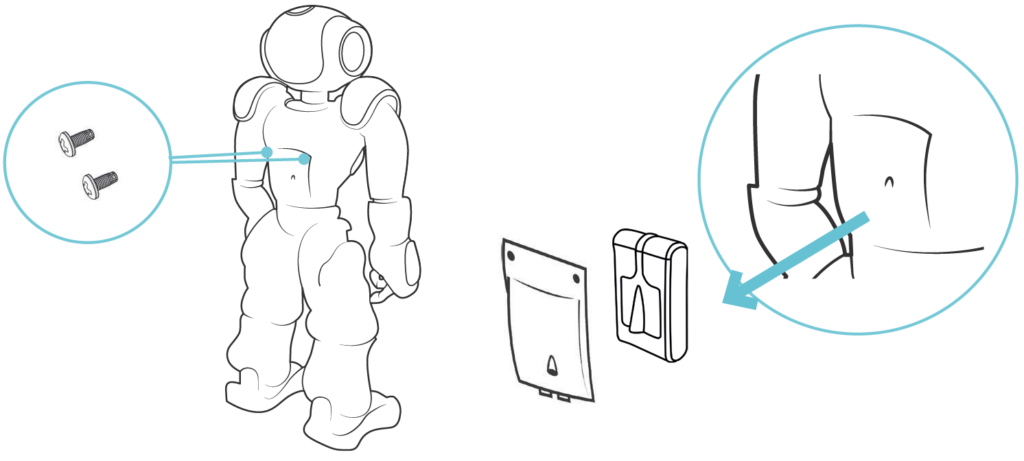
NAO reboxing
- Make sure NAO’s hands are closed.
NAO will close its hands when turning OFF. - For long time storage, remove the Battery. Do not place it in the box.
You will need to charge the battery on a regular basis to increase its durability during storage. - Put NAO on crouch posture, and place one of your hand on the back and the other under the feet.
- Slowly lift him.
- Place NAO in its casing, starting with the head.
- Press each limb to make sure everything is correctly inserted in the casing.
- Be really careful with the hand positioning.
- Place the top casing on top of NAO, slowly, then close the box.
DO NOT force the top casing insertion. If it does not fit, remove it and check the hand positioning again.
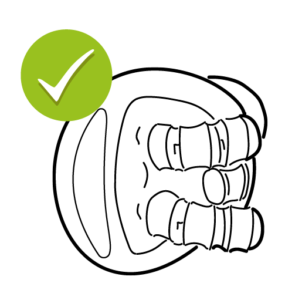
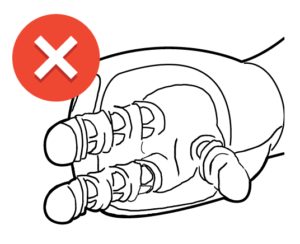
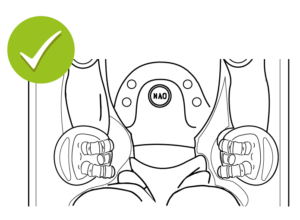
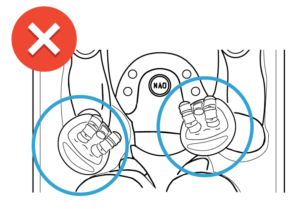
How to position NAO in the cardboard box ?
It is very important to put NAO in a correct position before closing the box.
Make sure every part of the body is inside the bottom white foam before putting the top part.
The hands//fingers and the feet must be put in the same position as in the pictures.
This will prevent any difficulties to correctly close the box and even avoid finger damages.