


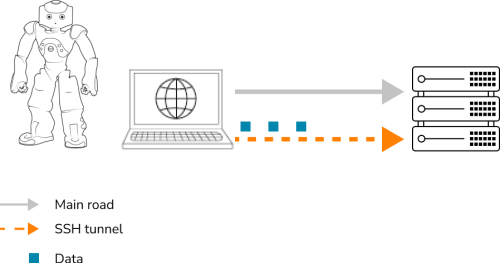
Once the command is executed successfully, the cursor will blink without returning to the command prompt. This indicates that the SSH tunnel is active.
3. Closing the SSH Tunnel
To terminate the SSH tunnel, press: Ctrl + C
 Important: Do not close the terminal window while the tunnel is in use. Closing the window will terminate the connection and require the procedure to be repeated.
Procedure for Windows
1. To establish an SSH tunnel from Windows, you must use PuTTY.
Download the executable file. putty.exe
Install and launch Putty.
2. Settings configuration
Session settings:
-
- NAO’s IP address : Press NAO’s chest button to obtain its IP address.
- Port: 22
- Connection type: SSH
Tunnel settings:
Navigate to SSH → Tunnels.
Configure:
-
- Source port: 9561
- Destination: localhost:9561 or 127.0.0.1:9561
Click ADD
-
- Source port: 8080
- Destination: localhost:80 or 127.0.0.1:80
3. Save Configuration
Return to the Session tab.
Click Save to store the configuration for future use.
Click Open to initiate the connection.
Enter your password when prompted.
To check if the SSH tunnel is open, launch or restart Robot Settings.
Important: Do not close the terminal window while the tunnel is in use. Closing the window will terminate the connection and require the procedure to be repeated.
Attention point
Once the SSH tunnel is open:
- To use Robotpage, you will need to use the localhost IP address (localhost:8080 or 127.0.0.1:8080)
instead of the robot’s IP. - To use Robot settings you can use localhost or localhost:9561 or 127.0.0.1:9561 or 127.0.0.1
- To use Choregraph you can use localhost or 127.0.0.1 with port 9561.
- To download Robot settings software, follow the link