

Support center NAO6
NAO configuration and settings
Managing NAO's
NAO web page
Access and update NAO’s setting from NAO web page.
- Open a browser (Google Chrome, Firefox, Edge, etc…) and type the IP address to connect to NAO’s webpage.
- Ensure the robot is connected to the same network as the device you want to use to manage its settings. If not, use an ethernet cable to connect NAO directly to a computer.
- Press the chest button for NAO to say its internet address.
- On your remote device, open a web page and type in the address that NAO gives you.
Example: http://192.168.1.19
Username: nao
Password: nao
- Display the current webpage of NAO.
Robot settings
For advanced NAO’s update and settings use Robot setting applications.
Robot Setting gives an overview of key information:
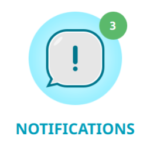
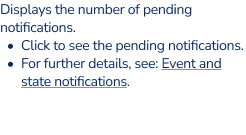
- See immediately if there are Notifications to read or Updates to launch
- See network name and type
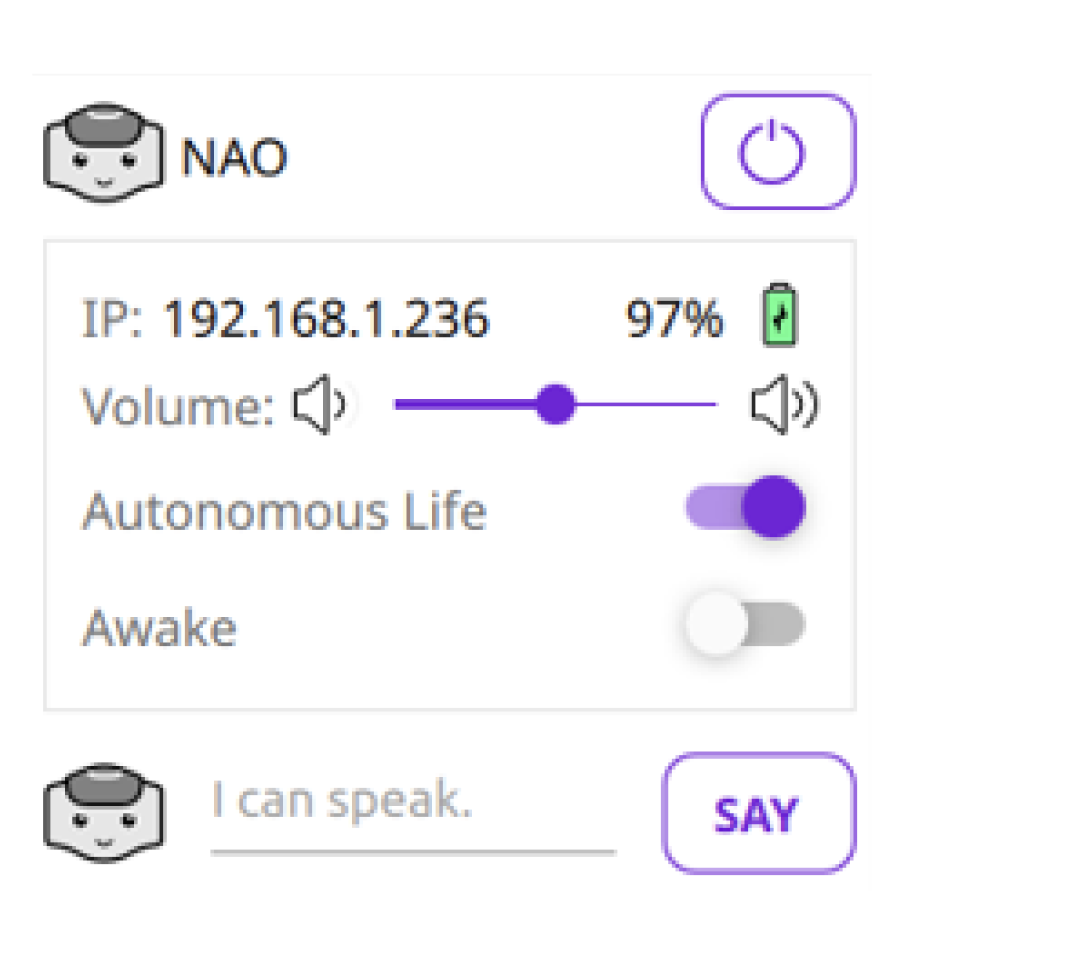
- Shutdown button
- IP, Battery level
- Volume
- Autonomous Life on/off
- Awake on/off
- Say
Accessing to Robot Settings
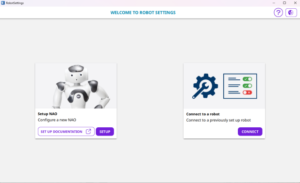
On your computer, launch Robot settings. Click the Connect button.
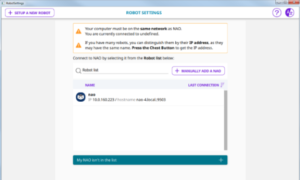
Select or add your robot. If your robot appears in the list, select it.
If your robot does not appear in the list, click the Manually.
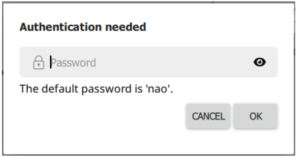
Enter its password.
Setting NAO's wifi connection
Why setting a WiFi connection ?
You can connect NAO to your computer using a wired or WiFi connection:
- Wired connection is mandatory for the initial settings.
- WiFi connection is highly recommended as soon as NAO starts moving.
Wi-Fi Management
Wi-Fi Management section allows you to set the connection to the network.
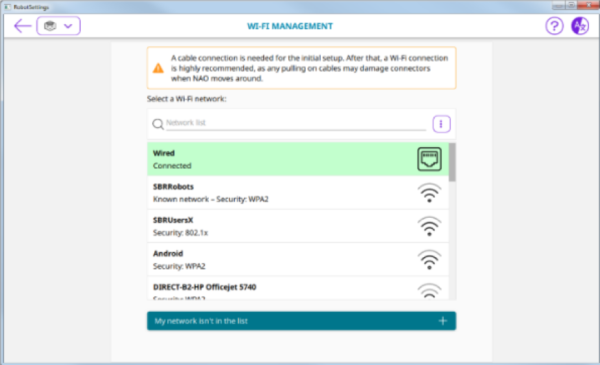
Prerequiers for wifi connexion
Remove the hatch behind the head of the robot to access to the Ethernet socket. Plug an Ethernet cable.
Connect the Ethernet cable to your Internet box.
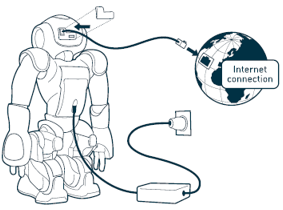
On a computer, launch Robot Settings. In the Wi-Fi Management page, choose and configure a WiFi network. The WiFi connection is set, you can now disconnect the Ethernet cable and close the hatch behind the head of the robot.
Standard WiFi connection
Select one of the available WiFi networks. Complete the required parameters, and click the Connect button.
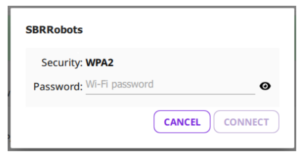
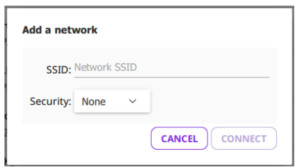
WiFi connection to a hidden network
Click the tree dots option menu and select Add a Wi-Fi network.
Network informations
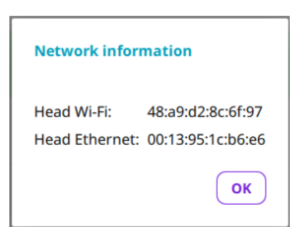
Click the tree dots option menu and select Network info. Network information displays the MAC Addresses you could need if your WiFi access point requires to set the MAC Address filtering.
Wired connection
Remove the hatch behind the head of the robot to access to the Ethernet socket. Plug an Ethernet cable.
Connect the Ethernet cable to your Internet box. The Wired network appears in the list.
Plugging my robot to Ethernet
If you have a router with a spare Ethernet port: Connect the Ethernet cable to the router.
The router will act as a DHCP server and give NAO it’s IP address.
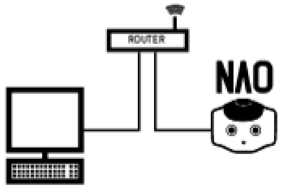
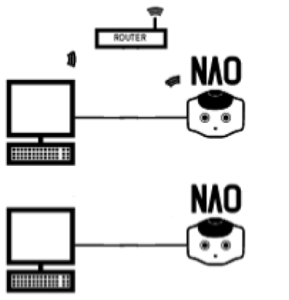
If you have no spare Ethernet port or no router at all: Connect the Ethernet cable to your computer.
(For Linux users : see Local-Link an alternative to DHCP in order to check if your network manager is set for using link-local.)
In case of local connection to a computer, the SoftBank Robotics Cloud may not be reachable. Nevertheless, local connection to Robot Settings and Choregraphe is still possible.
Local-Link an alternative to DHCP
In case of network without DHCP, it is possible to use link-local addressing. Link-Local is a standardized alternative to settings static IP address. With this feature you can obtain an address automatically, and establish a local network communication between your NAO and your computer.
If your NAO say that he got an address in the range of 169.254.X.X, the reason is haven’t discover any DHCP server and NAO has fall back to Local-Link.
Since 1.12 version you can just plug a network wire between your NAO and your PC, and obtain a communication without setting a static IP address. For MAC and Windows computer you have nothing to do to make it work, with Linux PC please verify if your network manager is set for using link-local.
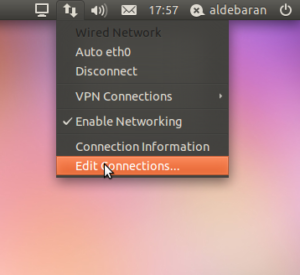
- On the nm-applet click on “Edit Connections…”
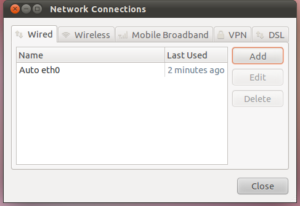
- Add a new profile to connect to NAO directly. Click on Add.
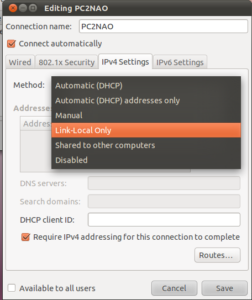
- Choose a nice name for your configuration here “PC2NAO”.
Select the tab IPv4Settings, and change the Method to Link-Local Only.
Click on Save, and close the menu.
- Disconnect from the previous profile.
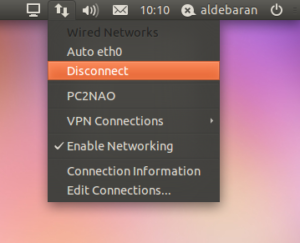
- Activate the new profile here “PC2NAO”.
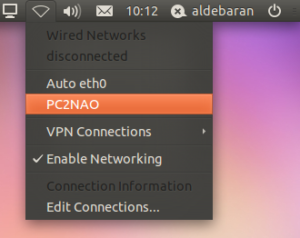
Now you can plug an Ethernet wire directly between tour computer and your NAO.
Settings page
Registering your NAO
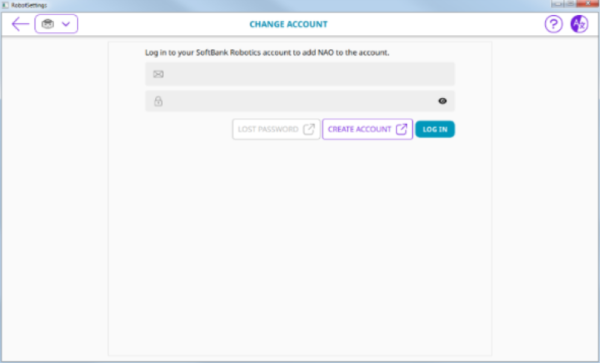
- On a computer, launch Robot Settings,
- Click the Settings page.
- Click the Edit button of Softbank Robotics Account field.
- Type the Email and Password of your SoftBank Robotics Cloud account.
- Click the Log in Button
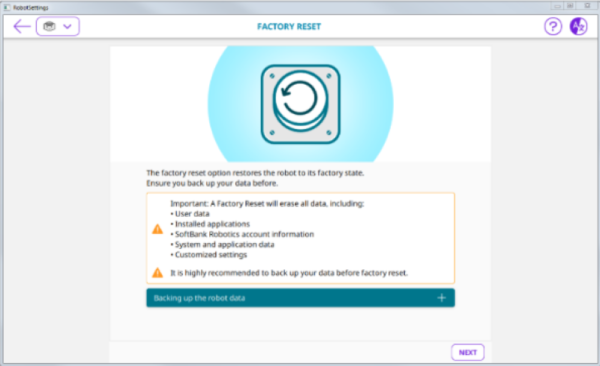
Factory Reset
This command resets the whole system in a similar state as if the robot was just out of the factory.
- Before performing a Factory reset, make sure you have previously back up robot data.
- For further details, see: Back up my robot user data.
Settings sections
Settings section displays the advanced settings of the robot.
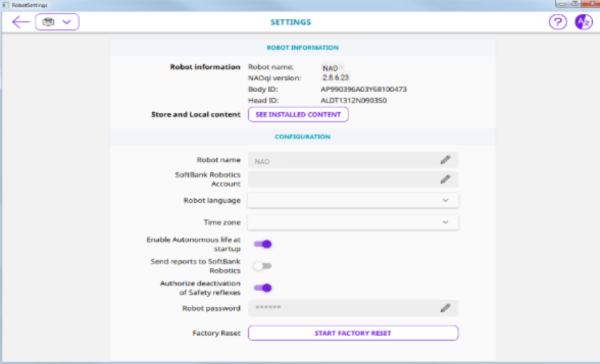
|
The “See installed content” button |
|
Display the list of installed content such as applications and languages. |
|
Robot name |
|
Allows you to set the name of your NAO |
|
SoftBank Robotics Account |
|
Allows you to register this NAO on your SoftBank Robotics account. |
|
Robot Language |
|
List of languages installed on NAO. Allows you to select the Language currently used by NAO.
Note: Avoid setting Robot language while Autonomous Life is on. For further details see: Switching Autonomous life on and off. |
|
Timezone |
|
Allows you to set the time zone. |
|
Enable Autonomous life startup |
|
Allows you to enable or disable the Autonomous Life at startup. Warning: if you disable Autonomous Life at startup, your NAO will remain static, and you will not be able to chat or launch activities by voice. For further details, see: Autonomous Life. |
|
Send reports to SoftBank Robotics |
|
Allows you to enable or disable the Usage Feedback. |
|
Authorize deactivation of the Safety reflexes |
|
Consent for the deactivation of safety reflexes
Disabled by default. To be used with caution. If activated, it will be programmatically possible to deactivate safety reflexes. |
|
Reset password |
|
Allows you to set the password of your NAO. |
|
Factory reset button |
|
Starts a Factory reset of NAO. For further details see: Factory reset. |
Add a 2nd Language
Important : Be aware that the choice is definitive. If you need to replace the 2nd language with another one, or simply want to uninstall it, please contact the support to complete this action.
Step 1 : Connect to Robot Settings and to Softbank Robotics Store. Start Robot Settings and connect to the NAO. Go to the UPDATES section. Click on the Softbank Robotics Store link to open the application store.
Note : by clicking the link your internet browser will be automatically opened. Do not close Robot Settings. We will need it afterwards. Click on Sign in button.
Use your Softbank Robotics account.
Step 2 : Add a 2nd language. Once logged in, click on “MY APPS” on the top menu. Click on the menu icon and select ” Language” In this page you can choose the language you want to install by clicking on a flag.
Example : For this tutorial we will select German as the example. Click “OK” to validate your choice .Once validated the page will automatically refresh to show you the 2 languages associated with your NAO. At this point the 2nd language is not installed in the robot. It was made available for NAO to download it. To properly finalize the installation on the robot, please follow the next steps.
Step 3 : Updating the robot appsGo back to Robot Settings .If no update is listed, click the ” refresh button”, the 2nd language should be added to the list after a few seconds with the label UPDATE.
Click “ Launch update” button. This will download and install it automatically. When the installation is completed , the status language will change from UPDATE to UPDATED, and ”Launch update” button disappears.
Step 4 : Set the language In Robot Settings, on the main menu click the ” settings” button. Click on the Robot language field and select the language you want NAO to speak.
Note: In the list you will see the language preinstalled and the 2nd language you selected in the Applications Store.
The change is automatic. Once you clicked, NAO will emit a notification sound to inform you the language is set.
It is possible to order two additional languages, among the Supported languages. Contact your local Sales Representative or the Customer support.
Update NAO and linked applications
When do I need to update my NAO ?
You can trigger the update using Robot Settings, when:
- You want to retrieve the last release of already installed applications.
- You have selected new applications on the NAO Apps Store.
- For further details, see: Selecting applications to install.
Updating your NAO
- Make sure your NAO is turned on and connected to the network. Press its Chest button once. If NAO says its name and IP address, connection is OK.
- On a computer, launch Robot Settings.
- For further details, see: Accessing to Robot Settings.
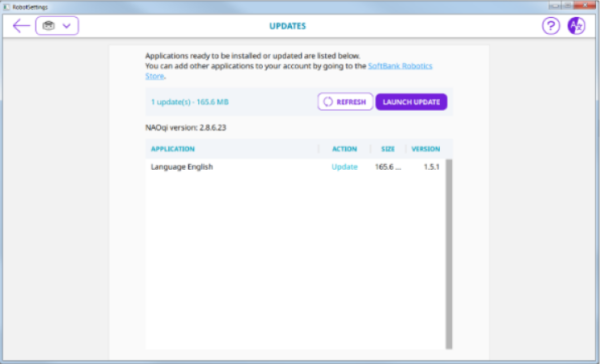
- Click the Updates page.
- Applications needing to be updated appear.
- Make sure Autonomous Life is switched off.
- For further details see: Switching Autonomous life on and off.
- Click the Launch update button.
Downloading a system image
When a new system image is available for download, the Robot Settings displays a NAOqi upgrade alert.
This automatic download is the result of a a setting defined on the NAO Apps Store. For further details, see: Setting automatic system update.
Check the battery level.
Important: make sure the robot battery is fully charged: a power shortage during upgrading could leave the robot in a fatal state. If your battery has a limited capacity, you should leave the charger plugged during the upgrade. However it could be wise to order a new battery.
To download the system image:
- Click the Update button.
- A progression bar appears. Wait until prompted.
- Click the ”Reboot now” button.
The boot process can take a long time. For further details, see: Upgrading.
Robot systeme automatic update
On the NAO Apps Store, choose My Apps.
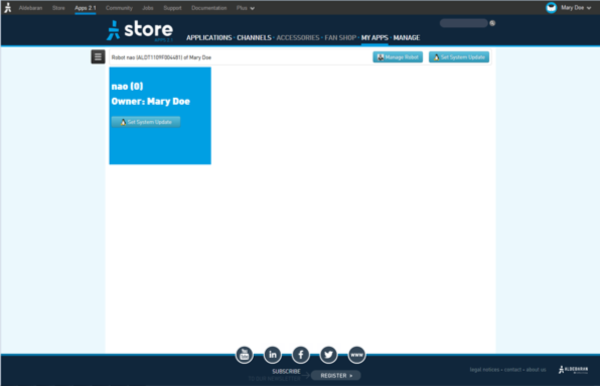
Click the Set System Update button.
Choose the parameters you want.
Click the Use this configuration button.
The Robot linked to your account will update its System accordingly.
How will I know a system update is ready ?
- The Robot settings displays a message:
- If you do not check the Robot settings, then a notification informs you and suggests you should reboot your NAO.
Applications management
A Channel is a way to update dynamically applications on your robot.
Subscribing to a Channel, ensures the applications you need are automatically added, updated, and removed, when necessary.
To subscribe to a Channel: Make sure you are the owner of the SoftBank Robotics robot.
On the NAO Apps Store, choose Channels.
Click the plus button of the Channel you want to subscribe to. The background becomes green.
As soon as your NAO is turned on and connected, the Channel will automatically update the last release of the applications and resources included in the Channel.
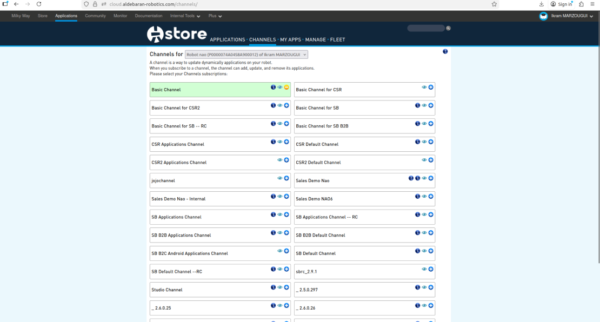
The application will be installed at the next robot update.
For further details, see: Updating your NAO.