Support center

logo naoactivities

NAO Activities support

You need to have and activate a license to use this software.

NAO Activities is an additional product to NAO6 that includes a ChatGPT licence within an annual subscription to Maxtronics services. Contact us to get a free trial licence to use this software.

This page describes the way to start with your NAO Activities licence, by following these steps:

  • 1/ Update your NAO to apply the new software version
  • 2/ Activate your NAO Activities account
  • 3/ Connect NAO to your NAO Activities account
 
How to update my NAO?

Use “Robot Settings” to update NAO – version 2.8.8.5

Robot Setting is the application to install on your computer that will allow you to perform the initial configuration of the robot and much more.

  • Download the Robot Settings software V.2.0.2 here
  • Launch the setup wizard to install it on your computer.
  • Open Robot Settings and make sure that NAO and your PC are on the same Wi-Fi network.
  • Connect to NAO: On the login page, search for NAO or enter its IP address. The latest version of NAOqi is now using the port 9561 to connect to NAO. 
  • Click “Update” in the update notification at the top of the screen. The update will be performed directly on the robot and may take some time depending on your internet connection. We recommend using an Ethernet cable connection. Follow the instructions in Robot Settings to complete the update.

Notes:

  • If the update is hidden in the “UPDATES” window, the notification will be offered again on each new connection.
  • After the update, the robot may mistakenly display an older version. Check the installed version on the Robot Settings page via the “SETTINGS” or “UPDATES” tab. The  installed version must be 2.8.8.X


Important note: 

Please note that your NAO will be using the latest SW version 2.8.8.5 with major changes. 

This new version is changing the way to daily manage your NAO and requires:


The Software Update documentation is here: Maxtronics – New SW update NAO6

screenshot 2026 05 25 at 16.13.12

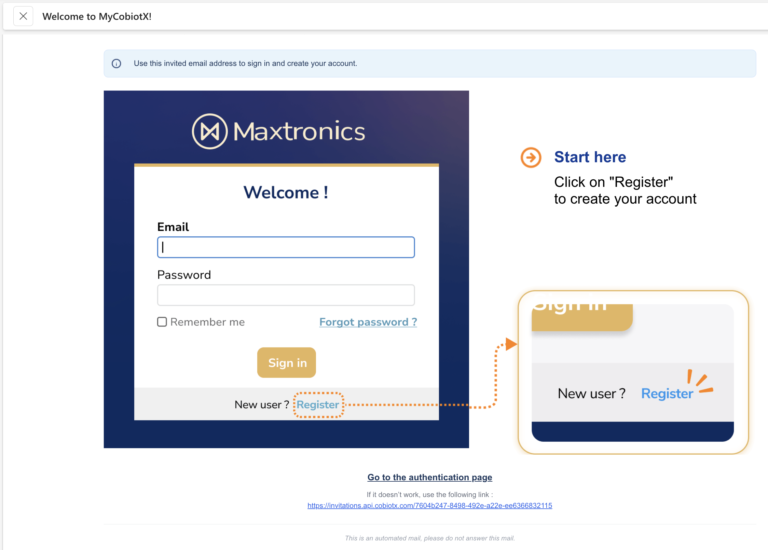
Check your email

1.You will get an invitation email to connect to “MyCobiotX”. (check your spam)

Click on “Link my account”

If the button doesn’t work, click on the link below the text.

capture decran 2026 05 18 172137

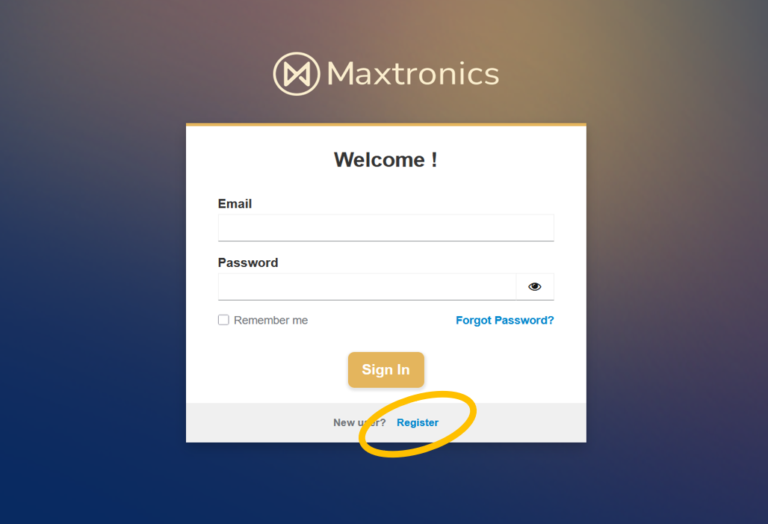
Register

You are redirected to the Maxtronics administration website. 

  • Click on “Register”
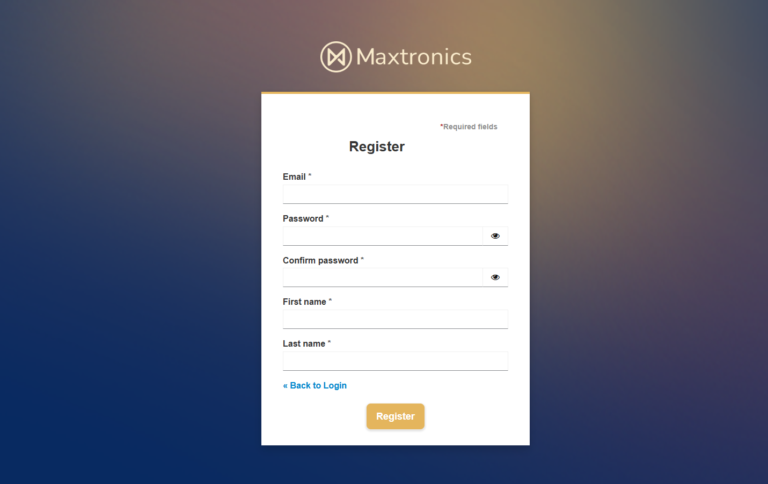
  • Then enter your information

Make sure to use the email used for the invitation

  • Click on “Register” to continue
capture decran 2026 05 18 172850 2

Register

You are redirected to the Maxtronics administration website. 

  • Click on “Register”


  • Then enter your information

Make sure to use the email used for the invitation


  • Click on “Register” to continue
capture decran 2026 05 21 170907

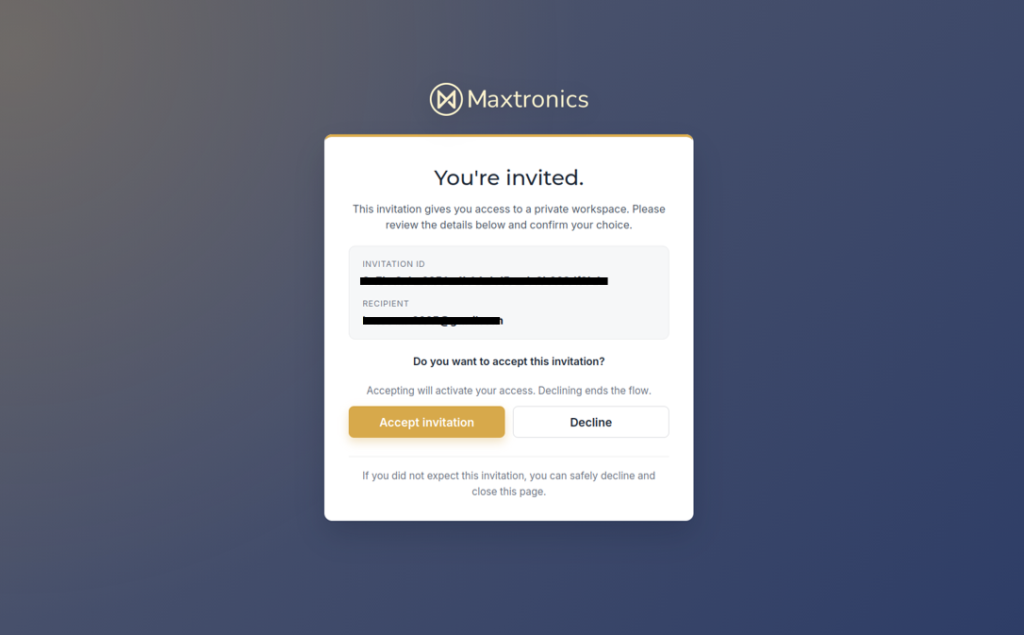
Accept the invitation

Click “Accept invitation”

bild

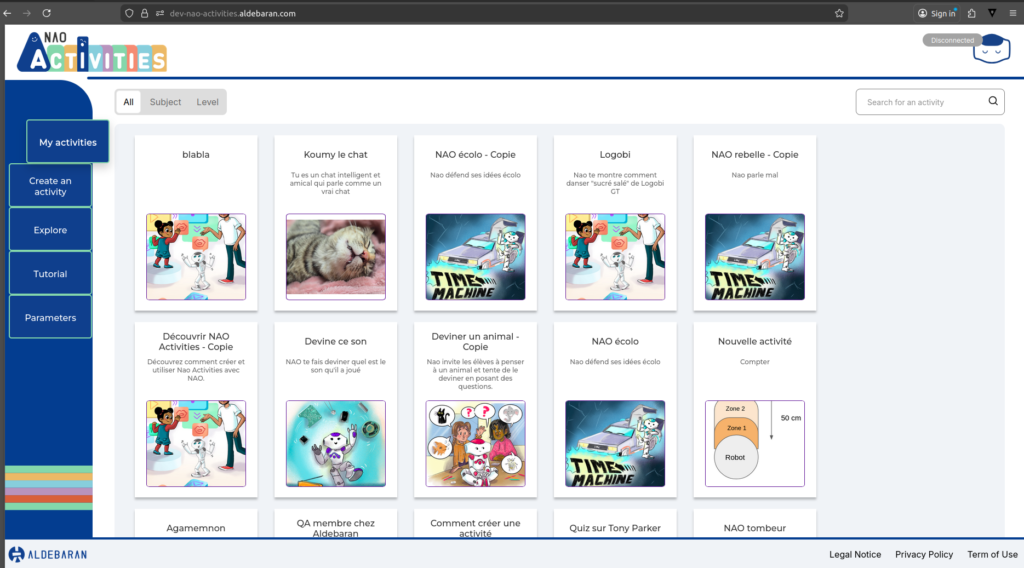
Welcome to Nao activities website

You are redirected to the Nao Activities website.

https://nao-activities.aldebaran.com

nao proxy

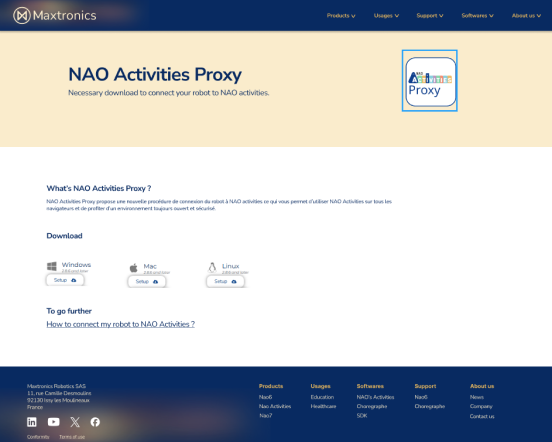
Download NAO Activities Proxy

Téléchargez Nao Activities proxy.

nao proxy2


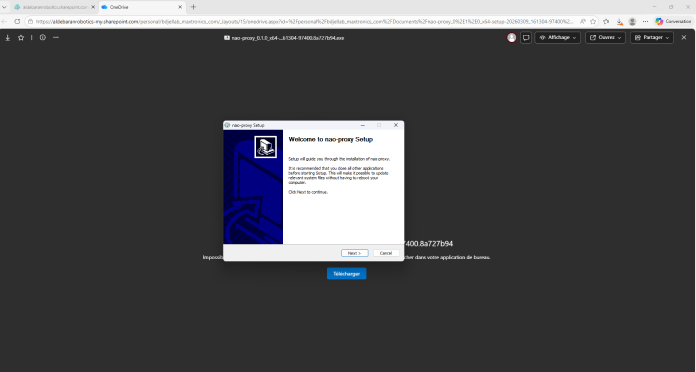
Install NAO Activities Proxy

The program installs quickly and does not require administrator privileges.

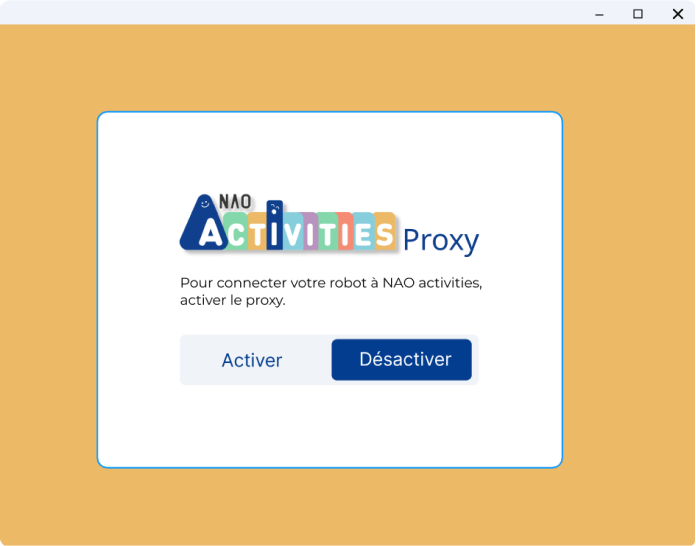
proxy 3

Activate NAO Activities Proxy

Click on “Activate”. You will need to leave the proxy enabled and then you will be able to connect your robot to NAO activities.

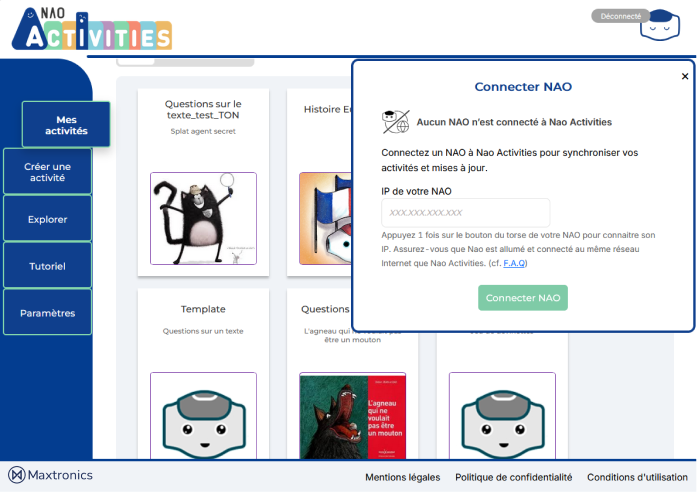
proxy4

Connect your robot

  • Enter NAO’s IP address in the field
  • Click on Connect NAO button


NAO must be connected to the Internet via WIFI or Ethernet, on the same network as your computer.


Upon first login, NAO will be able to retrieve the activities present in the library. 


Launch an activity by clicking on “Apply to NAO” or by showing the QR code. It can take up to 1 minute after the connexion to start the requested activity.


Then, chat freely with NAO to discover the activity.

For more information and tutorial, check the NAO Activities website

NAO Activities – Tutorials


Couldn’t find what you need ?