

Support center
How to activate my Nao activities license ?
NAO Activities is an additional product to NAO6 that includes a ChatGPT licence within an annual subscription to Maxtronics services.
Contact us to get a free trial licence to use this software.
1. Use “Robot Settings” to update NAO
Robot Setting is the application to install on your computer that will allow you to perform the initial configuration of the robot and much more.
- Download the Robot Settings software here
- Launch the setup wizard to install it on your computer.
Open Robot Settings and make sure that NAO and your PC are on the same Wi-Fi network.
Connect to NAO: On the login page, search for NAO or enter its IP address
Click “Update” in the update notification at the top of the screen. The update will be performed directly on the robot and may take some time depending on your internet connection. We recommend using an Ethernet cable connection. Follow the instructions in Robot Settings to complete the update.
Notes:
- If the update is hidden in the “UPDATES” window, the notification will be offered again on each new connection.
- After the update, the robot may mistakenly display an older version. Check the installed version on the Robot Settings page via the “SETTINGS” or “UPDATES” tab. The installed version must be 2.8.8.X
2. Activate your NAO Activities account
Important note:
- NAO Activities is compatible with Firefox and Safari.
- Due to new updates on the latest versions of the Web browser, NAO Activities is no more compatible with Microsoft Edge nor Google Chrome.
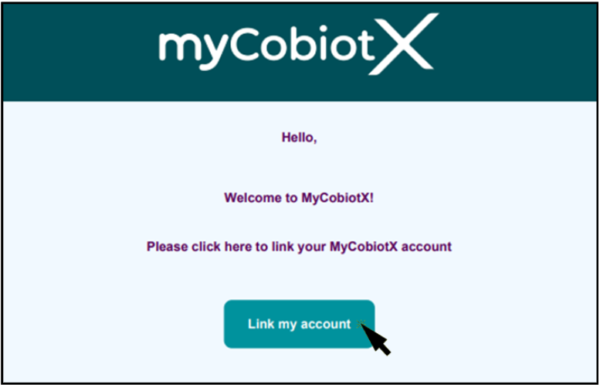
You will get an invitation email to connect to “MyCobiotX”. (check your spam)
- Click on “Link my account”
If the button doesn’t work, click on the link below the text.
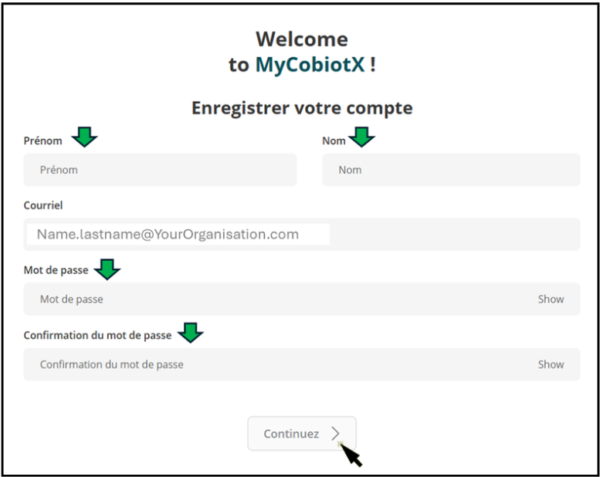
You will be redirected to the MyCobiotX website.
- Enter your first name, last name and password.
- Click on “Continue”
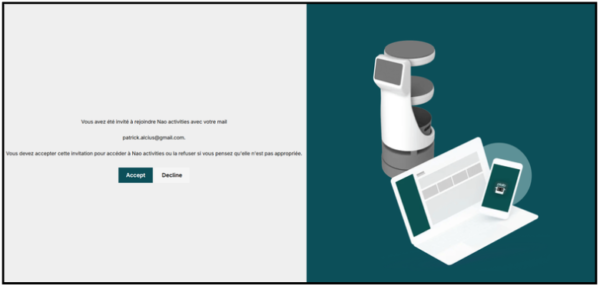
You will then be redirected to the NAO Activities website.
- First, click on “Access to Website”
- Then click “Accept” to confirm the invitation.
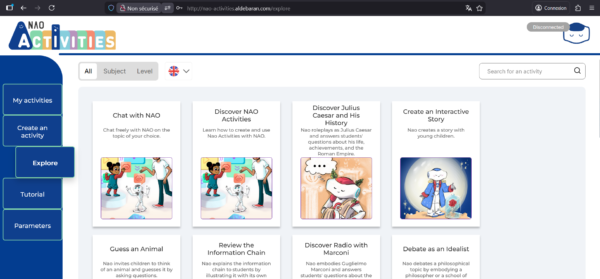
Welcome to Nao activities website
You are redirected to the Nao Activities website.
http://nao-activities.aldebaran.com
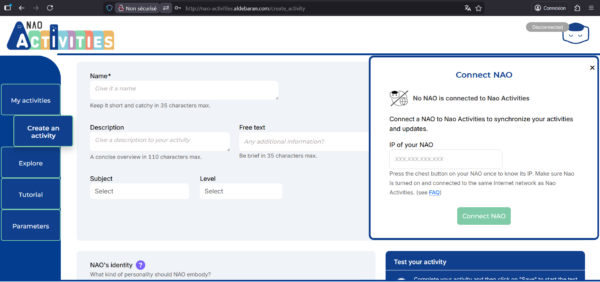
Connect NAO to NAO Activities for the first time to get the licence activation on NAO
- Enter NAO’s IP address in the field
- Click on Connect NAO button
NAO must be connected to the Internet via WIFI or Ethernet, on the same network as your computer.
Upon first login, NAO will be able to retrieve the activities present in the library.
- Launch an activity by clicking on “Apply to NAO” or by showing the QR code.
It can take 1 minute after the connexion to start the activity.
- Then, chat freely with NAO to discover the activity.
For more information and tutorial, check the NAO Activities website